This product integrates Tracab player tracking technology with Virtual Placement. Tracab system provides information about players positions. This can be used to visualize player attached graphics.
Before using this product you are required to do manual configuration. See Installation guide for more details. Once configuration is done you should be able to add this product to you project.
Tracab Settings editor
You can set two team colors. These colors helps you recognize the teams. The colors are only used in the preview or in the UI. The color is never used in final video rendering. The setting is stored in application wide storage, not in project file.
Players Definition File editor allows you to choose a file containing player lineup.
Player Selector and Player Icons
Enable or disable Tracab Player Selector and Player Icons. Player lineups are shown next to the preview window and player icons show up in the preview.
Player Icons
Under each tracked player, small rectangle with player number is rendered. There is a thin color bar at the top of the player icon that indicates player team. If the target has no team assigned then no color is rendered. If no jersey number is assigned then no number is shown.
The player icons and can be selected/unselected by clicking a mouse.
The icons are clickable even when jersey number or team is not assigned to the player. Then you can show graphics for these players without need to assign jersey number in Tracab system. Selection is visible in preview only and there's 'X' mark rendered for unassigned players on the Product button.
Tracab Player Selector
The selector contains 2 panels on both sides of the video preview, with buttons for all players defined in Players Definition File.The buttons serve for fast selection of players and load the selected into a Tracab Players product. The selector contains all players from Players Definition File in given order.
Selection in the tracab selector is cleared each time the Selector is open. Additionally you can clear the selection from popup menu invoked anywhere above the Selector.
Selection Workflow
- Select players you would like to load into the product (in the Tracab Player Selector or click the Player Icons.
- Press Tracab Players product button – selected players are loaded and visualized on the product button.
When the Player selector is visible, all clicks to the product will update players assigned to the product. To select the product, click the Product button with CTRL key down, click the bottom button of the Product button or close the Player Selector.
Players Definition File
Information about available players are delivered via xml file. Specify the file in the Tracab Settings editor. The file has following structure:
<Tracab>
<HomeTeam>
<Group name="Lineup">
<Player jerseyNo="2" lastName="Vales" myVariable="25"/>
<Player jerseyNo="1" lastName="Alves" myVariable="26"/>
…
</Group>
<Group name="Subst">
<Player jerseyNo="2" lastName="Ferreira" age="31"/>
</Group>
</HomeTeam>
<AwayTeam>
<Group name="">
<Player jerseyNo="2" lastName="Ferreira" age="31"/>
<Player jerseyNo="3" lastName="Ramos" age="28"/>
…
</Group>
</AwayTeam>
</Tracab>Mandatory elements and attributes are bold. Except those, you can add any attributes to the Player element of your choice. All attributes can be referenced in the Style editor and rendered in the Player graphics.
The players can be divided into several groups. Each group of players is displayed in its own tab in the Player selector. When each team contains only one group, the tabs stay hidden.
A third party application can send updated data via an XML, which Virtual Placement can read automatically if the auto update is enabled within the Tracab editor.
Product Button
Player tracking product can render graphics attached to individual player. The graphics is customized by style. The style is user editable.
The thumbnail of the button is composed dynamically, according to elements actually enabled in the style.
The thumbnail contains player numbers assigned to this product. Each player number has background assigned to its team (see Tracab Settings editor.)
Team editor
Team editor is accessible from the popup menu of the Product Button. You can reserve the Tracab players to single team only. When a team is specified, the product will contain only players from selected team. This filtering rule is applied during selection only (see Selection Workflow).
Style editor
The player is visualized according to the defined style. The style is embedded inside the product and therefore stored in the project file. If you want to share the style you can export and import the style to/from a separate file.
Style editor is accessible from the popup menu of the Product Button.
The graphics is composed of several parts. Each part can be disabled/enabled. You can use either image file or GTC clip file. The system can automatically recognize the file type. For clip you can define a loop start frame. This is useful when your clip has a in-animation to show the graphics and then a looping part to be used during the presence on the screen. There is a short fade-out when taking the graphics off air.
This icon on the tab means that part of the graphics defined in the tab is enabled and will be rendered.
Additional lines can be added to the above player text providing greater flexibility when creating top fonts.
Variables
Text and File fields may contain a variable, which is later replaced by its value.
| $(TRACAB:myVariable) | Replaced by value of myVariable attribute defined for each player in the Players Definition File |
| $(TRACAB:TEAMID) | Replaced by team identifier. TEAMID is NOT a reference to attribute name, but is replaced by following constant: 1 – for Home team 2 – for Away team |
Variable can reference value of any attribute of the Player element defined in Players Definition File. When the variable is used in File field, you must specify, whether the referenced file is an image or a GTC clip.
Text Formatting
Some graphics can contain a text field. There are values provided by the application that can use used in formatted string. See table of all supported variable names on page.
The format string is is compatible with ANSI C printf() function.
Example:
%.0f - no decimal digits (example: 10).
%.1f - one decimal place after the decimal point (example: 10.1).
%MPH$.1f – picks value “Speed in miles/hour” and uses one decimal point formatting.
Supported value names
| Supported value names | |
| KMH | Speed in km/h |
| M | Distance in meters |
| KM | Distance in kilometers |
| MI | Distance in miles |
| YD | Distance in yards |
| FT | Distance in feet |
| MPH | Speed in miles/h |
| MS | Speed in m/s |
| Pid | Custom property of given ID. The ID is a number. |
Element
Graphics under the player
The graphics is centered on the player position.
The tracking type is "Pitch"
Keyer is set to chroma keyer. When multiple chroma keyers are in use, you can select the keyer instance in popup menu "Keyer" for the Tracab product.
Colors
Original colors: No effect will be applied.
One color: White color in the graphics is replaced by user defined color.
Three colors: RGB colors are replaced by three user defined colors.
Opacity
Applied to the image/gtc clip.
Size
Fixed: Graphic element keeps constant size defined in the style editor [in meters].
Scale: Scale the graphics to another player. You can choose among Closest opponent, Closest teammate and Next selected player.
Player 2 coords: you can define point in the texture of the 2nd player [in range <0, 1> for both x and y where [0, 0] is lower left corner of the texture]. Center of the texture is under the 1st player.
Element: Graphics above the player
The plane with the player graphics automatically rotates in Y axis to face the camera.
The graphics is centered in X and touches the pitch at the player position.
Keyer type is linear.
The visibility order is fixed so the image/clip is always behind the jersey number. The order cannot be changed. The Z coordinate does not have any effect on the ordering.
Colors
- Original colors: No effect will be applied.
- One color: White color in the graphics is replaced by user defined color.
- Three colors: RGB colors are replaced by three user defined colors.
Opacity
Applied to the image/gtc clip.
Minimum Size
You can specify minimum size of the graphics. It is guaranteed, the graphics is never scaled down under the specified value. Minimum size is set in percents of the screen size (0 means disabled, value of 100 means full screen size.)
Text delay in
When a non-zero value is set, the text production begin is delayed (by specified number of video fields.) After that time, the text begins to fade-in.
Text delay out
When a non-zero value is set, the text production is finished at after given number of video fields from the stop production command (incl. fade out.)
Loop/Pause
Can be applied on .gtc clip.
Loop
Specify frame, where the loop begins. When in on-air, the clip will loop from the loop begin to the end of the clip.
Pause
Specify frame, where the clip is pause when on-air. Press the GO button again to play the clip to the end. Allows to have animated out-effect.
| Text can have named values. See Text Formatting. |
Distance Measuring
- Absolute - Length of player's trace form the start of the match.
- Elapsed - Length of player's trace form the moment the product gets on-air.
Text Style
See Text Style.
Element
Interconnecting lines. Connects selected player by lines. Lines are rendered in the pitch plane. Lines can be optionally textured. Players are connected in the order as they were selected.
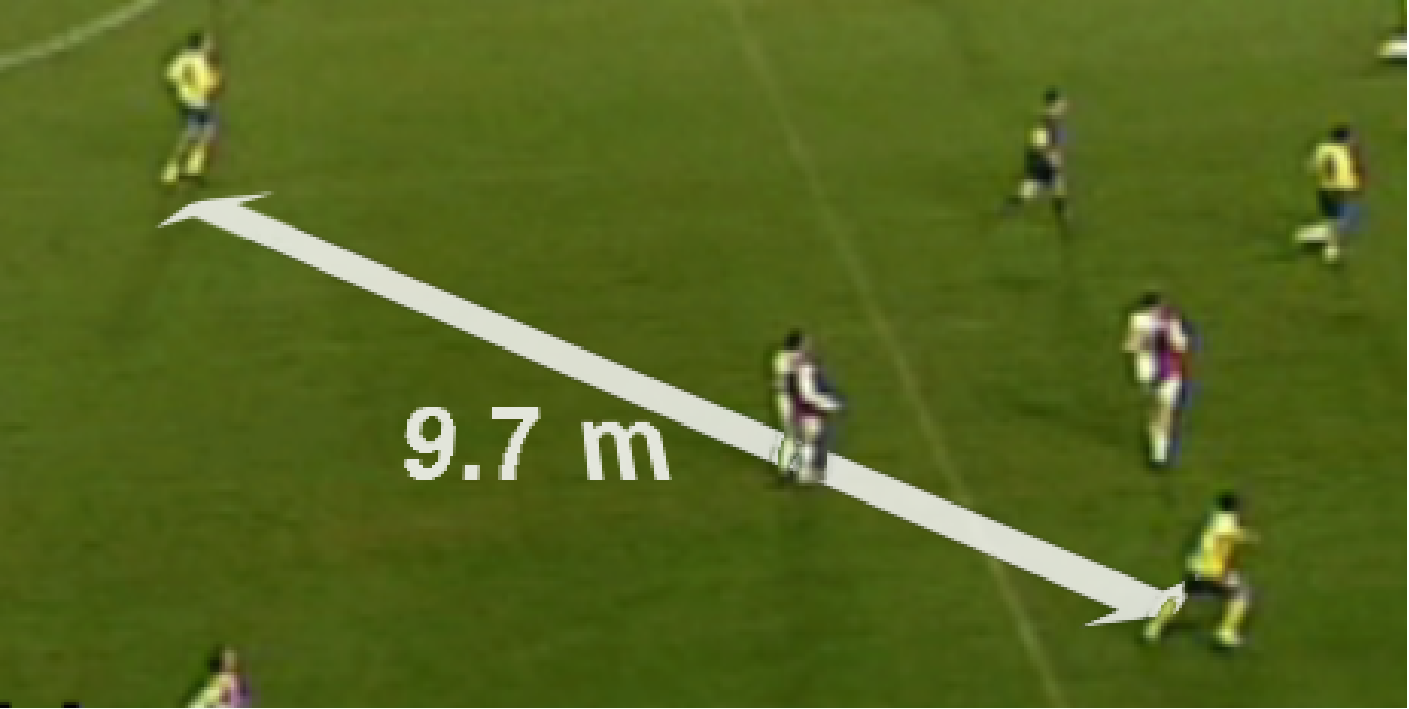
Optionally you can enable rendering of distance between the players. The distance is rendered next to the center of the line (if the center of the line is on the left side of the pitch, the text is rendered on the left hand side as well, and vice versa). You can specify offset from the centre of the text. The offset is set in meters from the center of the interconnecting line in the coordinates of the line. The orientation of the coordinate system depends on the side of the pitch. The text can be placed on the pitch, in upright billboard mode, or billboard facing mode, which always faces the camera.
Text can have following named values (presented in order). See Text Formatting.
| M | Meters |
| KM | Kilometers |
| MI | Miles |
| YD | Yards |
| FT | Feet |
Text Style
See Text Style.
Fill
Creates fill polygon with specified color between selected players. When the fill is combined with Interconnecting lines, an extra line is added between the first and the last player, so the lines form outline of the polygon fill.
Convex Hull
Ensures the Interconnecting lines from a convex polygon (not crossing each other). Applies only when the Interconnecting lines are closed (Fill is enabled.)
Fixed Point
Allows the user to select a fixed point within the image, and the assign additional points to moving targets.
Element
Trail. Draws trajectory of a player. The trajectory is rendered in the pitch plane.
Like the Interconnecting line, the trail can be optionally textured.
Trail type
| FROM_START | The trail is drawn from production start to current player's position. |
| TO_END | The trail is drawn from current player's position to the end (shows where the player will run). This mode is available when production start and end is known (see Video file Recorder, Game Actions). |
Element
Lower third. Displays label with actual performance information for actually selected player(s).
All graphics used in Distance and speed are positioned in screen coordinates.
Tracking and chroma keyer is disabled.
Position of the background image/gtc clip means position of its center. Position of the text is defined by offset from the background position to the pivot of the text. The pivot is dependent on the text alignment and is computed from its bounding box (middle of the left side for left aligned text).
| Text can have named values. See Text Formatting. |
Distance Measuring
- Absolute - Length of player's trace form the start of the match.
- Elapsed - Length of player's trace form the moment the product gets on-air.
- Difference – Distance between two players.
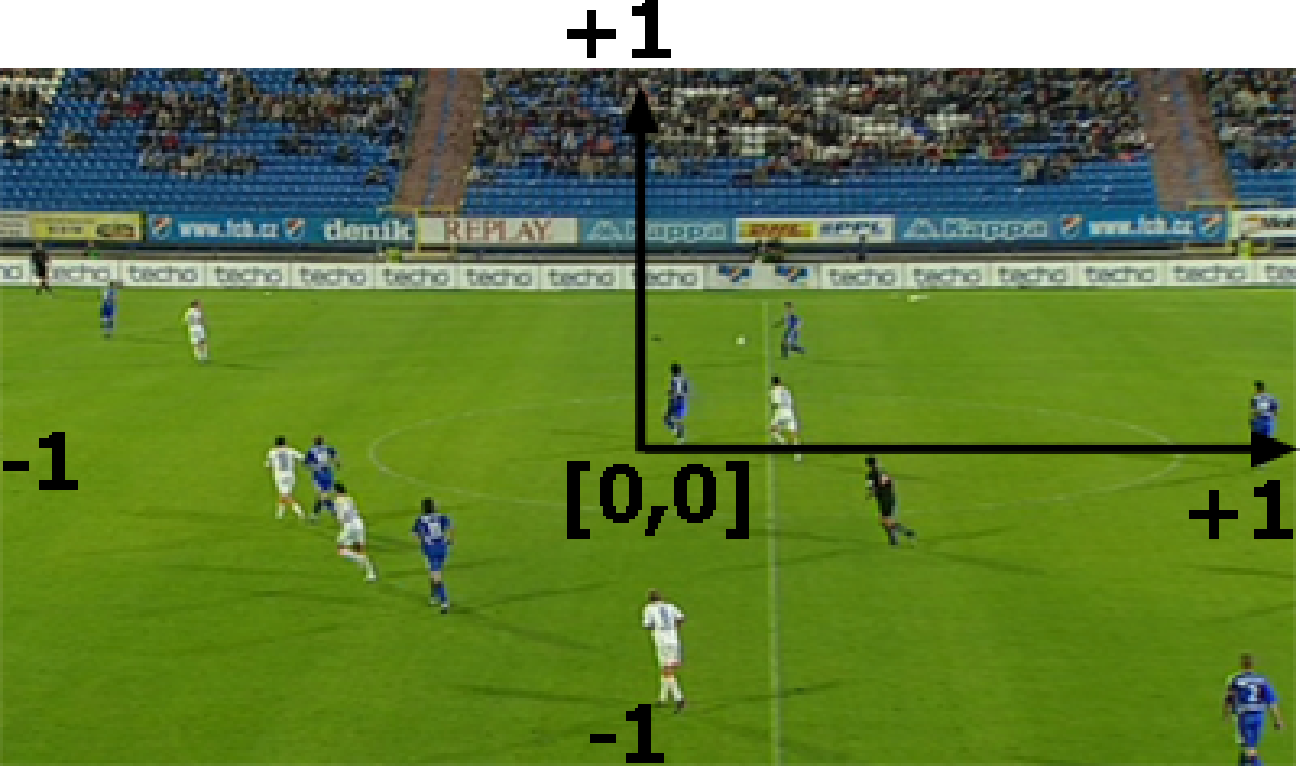
Screen coordinate system
The center of the system is in the middle of the screen, with coordinate [-1,-1] in the lower left corner, and [1,1] in the upper right corner.
Text delay in
When a non-zero value is set, the text production begin is delayed (by specified number of video fields.) After that time, the text begins to fade-in.
Text delay out
When a non-zero value is set, the text production is finished at after given number of video fields from the stop production command (incl. fade out.)
Text Style
See Text Style.
Element
Offside. Displays 2 lines, one on position of the last defender, one on position of the attacker closest to the opponent's goal line. When the attacker is in potentially positive offside position, the attacker line might be drawn using different color.
Offside ignores players actually assigned to the product, the players concerned are picked automatically.
Style
- Texture – Offside line texture. The texture is stretched vertically to cover the whole pitch width and horizontally to fit specified width.
- Width – Width of the lines on the pitch (in meters).
- Defender – color of the line drawn on position of the last defender.
- Attacker default – color of the line drawn on the position of the attacker closest to opponent's goal line, not being in offside position.
- Attacker offside - color of the line drawn on position of the attacker in potential offside.
- Team – Attacking team. The attacking line is drawn for attacker from this team, the defender line is drawn for player from the opponent's team. Use two Tracab Players products with different Team set to cover offside for both teams.
Heatmap
Virtual placement 7 has the ability to show a heatmap under players when integrated with a Tracab system. The heatmap functionality will only work with live data from Tracab (using TDC 4.5.9.2 or later), this capability is not supported in replay mode.
- Texture – Select graphic file for heatmap texture
- Opacity – Adjust the transparency of the texture
- Fade – In/Out dissolves for texture
- Render mode
- Smooth will soften the squares for a more fluid look to the heatmap (as default). Tiles will maintain the squares edges for a more checkered look to the heatmap.
- Automatic playback pause - Set pause point at the time of an Offside situation (use Pause button next to the product button). During playback, the video will stop at this point.
The stop point is shared for all Tracab Players products. However, the stop point can be stored to a clip (see Video file Recorder, 'Store product selection to the clip' toolbar button). Once the clip is recalled, the product is automatically selected and saved pause point is activated.
Text Style
Text style is placed in a standalone .xml file (having TextStyle root element). The style is referenced from the Distance and Speed Style editor. Style may contain following properties of the text.
| FontHAlign | Horizontal alignment { LEFT | CENTER | RIGHT | DOT_FIRST | DOT_LAST } |
| FontHAlignChar | Horizontal alignment character |
| FontVAlign | Vertical alignment { TOP | CENTER | BOTTOM | FIRST | LAST } |
| FontLineSpacing | Relative line spacing. Value 1.0 means spacing by the height of the font. |
| FontLineFlowPolicy | Behavior for lines wider then defined limit. { DONT_CARE | SCALE | UNIFORM_SCALE | SOFT_NEWLINE | HARD_NEWLINE | SOFT_SKIP | HARD_SKIP | SINGLE_LINE } |
| FontLineWidth | Line width limit. (see FontLineFlowPolicy) |
| FontFixedPitch | Fixed character pitch. (disables kerning defined by font). |
| FontKerning | Additional kerning. |
| FontCapitalsRatio | If enabled (value > 0) then all characters are made capitals. The original non capital letters are rendered smaller. This value defines factor for that scale. |
| FontName | Name of the font. All system fonts are available. |
| FontResolution | Font texture resolution in pixels. It should approximate match the pixel size on the screen. |
| FontBaseColorMode | Coloring text mode. { SOLID | CHAR_4POINTS | LINE_4POINTS | GLOBAL_4POINTS | LINE_2GRADIENTS } |
| FontBaseColor | Color to be used when mode is SOLID |
| FontBaseColorP1 | Color for gradient coloring |
| FontBaseColorP2 | Color for gradient coloring |
| FontBaseColorP3 | Color for gradient coloring |
| FontBaseColorP4 | Color for gradient coloring |
| FontOutlineSize | Size of outline in pixels. Set to zero to disable outline. |
| FontOutlineColor | Outline color. |
| FontShadowOffset | Relative offset of shadow to normal text. |
| FontShadowBlur | Amount of blur of the shadow. |
| FontShadowColor | Shadow color. |
Example:
<TextStyle>
<FontHAlign value="RIGHT"/>
<FontCapitalsRatio value="0.7"/>
<FontName value="Arial-Bold"/>
<FontResolution value="70"/>
<FontBaseColor value="[0.29,0.32,0.69,0.84]"/>
</TextStyle>