⏱️ 2 Hours before the first race
🅾️ Check tracking system status
- Log in to the ZXY Transponder Info for the relevant track (E.g. http://bjerke.zxy.no)
- Check the system for errors, which are indicated by a red flashing icon next to the logo.
- If this icon is flashing, navigate to the System tab to identify the problematic service.
🅾️ Prepare tracking server
- Start Caprino
- Make sure there are no errors on startup.
- Start HTS Race Control
- Make sure it’s connected to Caprino
- Download the race schedule by pressing “Load Races”
- If needed, do any transponder swaps.
- Click the number above the start number button
- Select the transponder number
🅾️ Prepare graphics server
- Launch Chyron PRIME with the appropriate settings.
- Choose the track name, race type, colors, and other elements for the graphics layout.
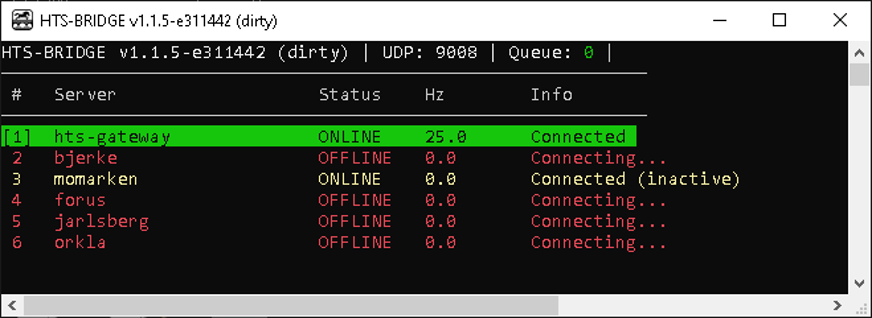
- Launch HTS Bridge
- Make sure it is running and has selected the relevant server (track).
- If everything is OFFLINE, check the VPN status.
- If the target server is OFFLINE, make sure Caprino is running on that tracking server.
- The Hz should be stable at 25
- If problems persist or are not resolved, contact 🔧 ES
 ⏱️ 30 Minutes before the first race
🅿️ Check in
- Check in with 🅾️ so they know who is working today.
🅿️ Start transponders
- Activate the transponders by holding the power button for one second.
- Bring the Transponders outside with a clear view to the sky
- Verify that the LED starts to blink green.
🅾️ Verify transponder status
- Log in to the ZXY Transponder Info and verify that the Transponders are working by looking at the Table view
- The Time should be updated from today
- The Hz should be ~10
- The Temperature should be below 50 °C
- The Battery should be above 80%
- In the case of a malfunctioning Transponder, contact 🅿️ for troubleshooting.
- Tell 🅿️ to hold down the power button for at least 3 seconds to do a hard reboot of the Transponder.
- If the problem persists, communication must be done between the live support and personnel at the race track on which transponder ID should be used as a replacement.
Image description: ZXY Transponder Info – Table View
🅾️ Check in with Production
- Check in to the slack channel and inform if everything is working as intended.
- In case of any malfunction, give status updates on the troubleshooting progress.