Overview
The Audio Mixer allows you to control levels and adjust audio settings for all sources, including commentator microphones, cameras, clips, and graphics. For quick adjustments, a Mini Mixer is available in the switcher module, located in the top-right corner. The mixer fully supports audio follow video and multi-touch control, enabling smooth, simultaneous fader adjustments on touchscreen devices.
Click the Audio icon on the navigation bar to open the full-frame Audio Mixer.
The full Audio Mixer is organized into three main sections:
- Inputs – Manage and adjust all incoming audio sources
- Outputs – Control what is sent to each output channel
- Routing – Map any input to any output, with flexible configuration
Chyron LIVE currently supports up to 4 audio tracks for both inputs and outputs, allowing multi-track workflows such as clean feeds, language splits, and commentator mixes.
Inputs
- Page 1 – Audio controls for Camera 1–6 and Clips
- Page 2 – Faders for GFX1, GFX2, and COM1 - COM4
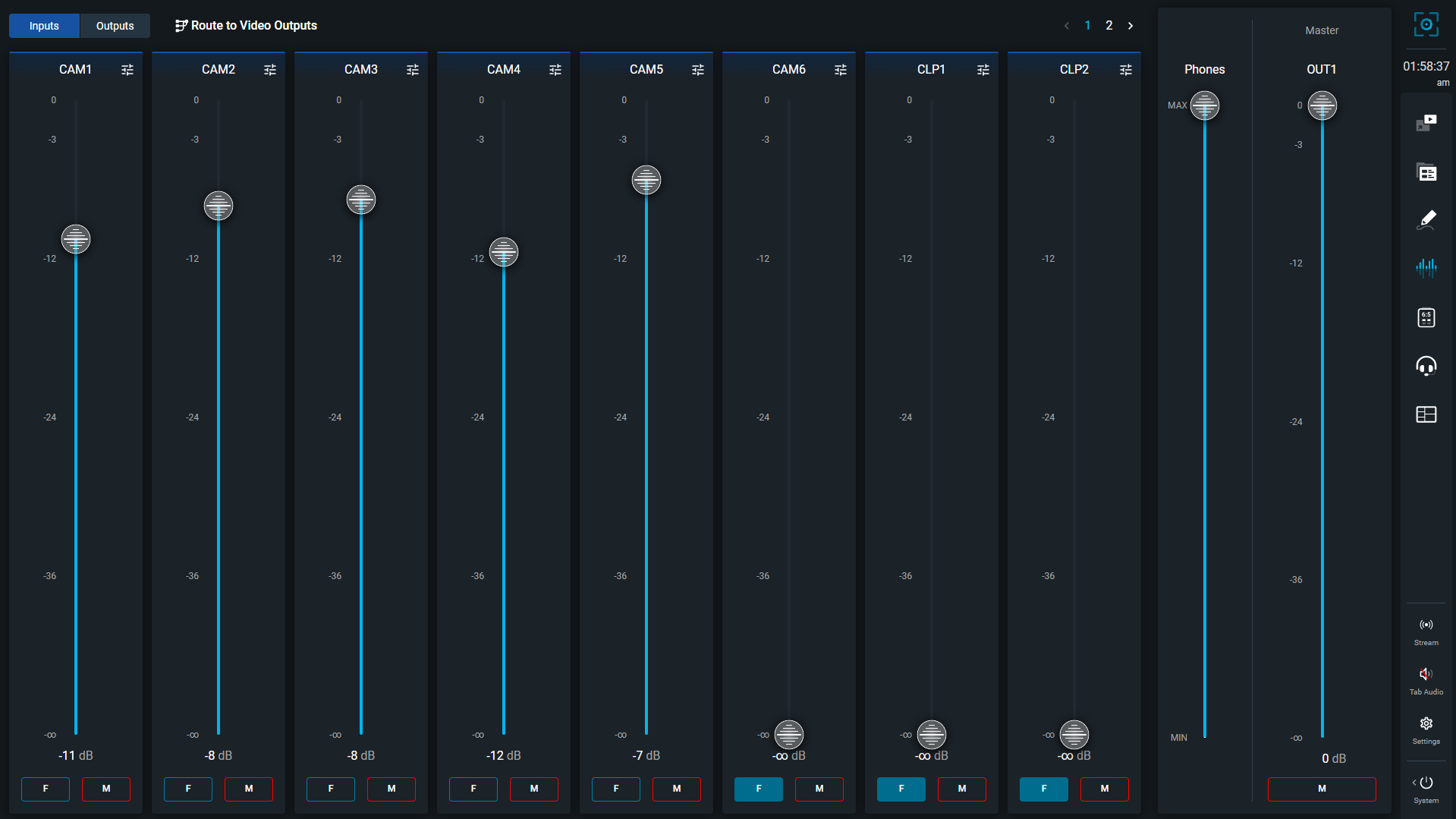
Configure Input Faders
- Each Audio Input fader can be configured to control the any available input source and track (up to 4). By default each Camera input and graphic input is configured as a fader
- Click Configure button to select or change the input source and track for any fader
- Channel layouts include: Stereo, Stereo flipped, Mono, Mono Left, Mono Right and Unspecified
- Follow sources: Audio Follows Video means the audio automatically switches to match the video source currently on Program. For example, if your Follow Source is set to CAM1, then whenever CAM1 is taken to Program, the mixer will automatically bring up Cam 1’s audio and lower or mute the previous source’s audio, keeping the sound in sync with the active camera shot. Multiple Follow Sources can be assigned, but the Follow button on the bottom-left of the fader must be enabled for that source to participate in Audio Follows Video.
- Delay: Delay allows you to add an audio delay, in milliseconds, to keep the sound in sync with the video or other sources
Outputs
Audio outputs are groups of inputs that can be routed to any available Output or output track (up to 4).
Three audio outputs are preconfigured by default:
- OUT1 – Routed to Output – With GFX, using Track 1 (Stereo)
- OUT2 – Routed to Output – Clean, also using Track 1 (Stereo)
- Commentator – A mix-minus group shared by all commentators
Note: In the current implementation, remote commentators cannot hear each other unless they are located together. This is based on the assumption that commentators are working independently in multiple languages, each providing their own isolated commentary mix. Individual mix minus groups will be supported in future versions.
Configure Outputs
- Click Configure button to select the active input sources
- Pin the desired group as the Master fader
Routing
Once inputs and outputs are configured, they can be routed to any available output or assigned to any audio track on the 2 available video outputs (with GFX and Clean)
Configure Routing
Select the Video Output and Track number (1–4). Track layouts can be Stereo or Split into Left and Right channels. Any output group or input source can be sent to the available tracks or assigned individually to the left and right channels.
Note: Streaming services like YouTube, etc. use the following outputs configuration by default:
- Video: OUTPUT – With GFX
- Audio: Track 1