The Scene Tree is divided up into several sections:
- Quick Functions and Search Bar
- Advanced Search by Type and Tag
- Object Properties Column
- Objects Column
- Effects Column
Scene Tree Quick Functions and Search Bar
- Cut
- Copy
- Paste
- Rename
- Group Selected
- Ungroup
- Delete
- Search Properties
- Filter
- Highlight
- Advanced
- Search Bar
Scene Tree Search by Type or Tag
Left click the magnifying glass and select Advanced to toggle searching by Type or Tag
Designers can search for and see all added Objects in a Scene. By selecting one or more objects at a time, designers can quickly search for certain objects such as Graphics, or Graphics + Effects, or Graphics + Effects + Resources for example.
Click the left menu from Type to Tag to Search by Tag. This allows designers to see all Tags within a PRIME Scene and also filter or highlight objects with only the specified tag.
Search by Type and Tag uses the same Filter or Highlight Search Modes like when searching by name. Users can also combine Search by Type or Tag along with Searching by Name if needed.
The Objects Properties Column
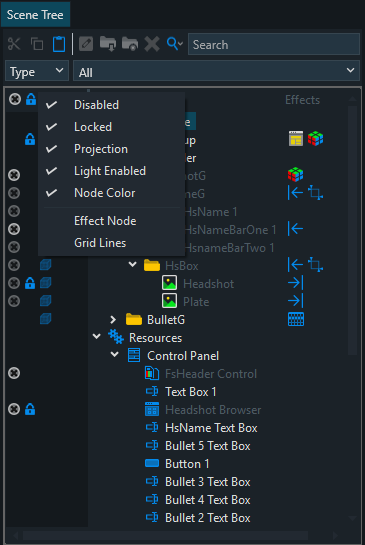
The Left Column allows for toggling on and off the Object properties
*Right click on the left column toolbar to hide/show these properties
Objects Properties
Each object has properties to the left of the object in the darker section:
- Disabled, Locked
- Locked
- Projection
- Lighting
- Node Color
The Objects Column
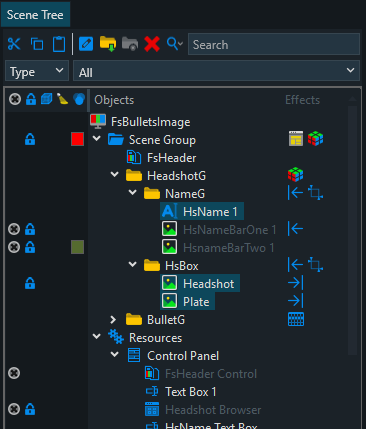
Shows all added Scene Toolbox Objects (Graphics, Effects, and Resources), Control Panel Controls, Parameters, Expressions, Logic, Conditions, and Replaceable objects from top to bottom.
Selecting an object or effect will show its properties
The Effects Column
- Allows for the dragging and dropping of Effects from the Toolbox
Parameters/Expressions/Conditions/Replaceables:
See the separate sections and documents for descriptions.